
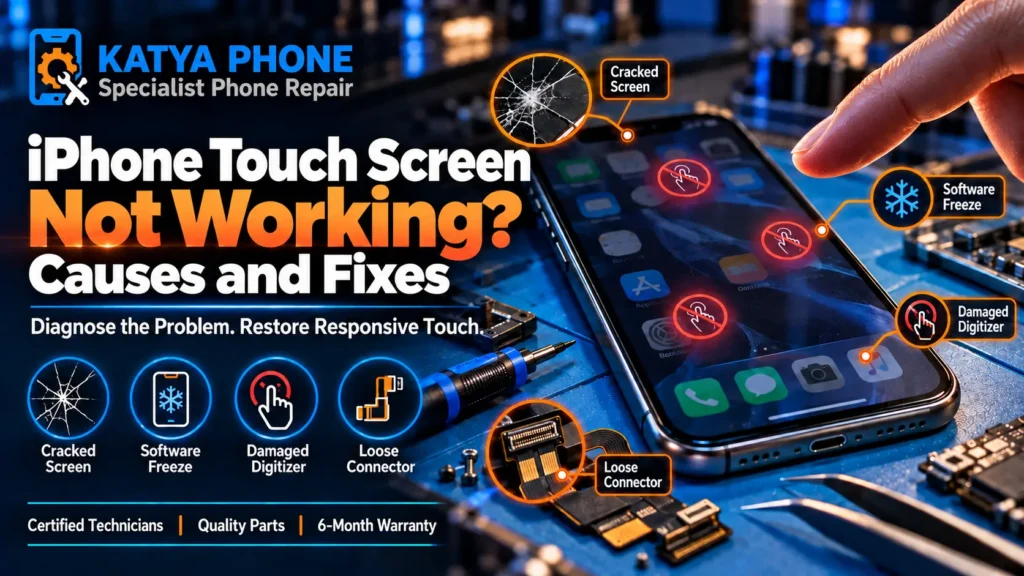
If your iPhone touch screen is not working, start by cleaning and drying the display, removing the case and screen protector, disconnecting any charger or accessory, and force restarting the phone. If part of the screen stays unresponsive, especially after a drop or liquid, the display may need a professional repair. That short checklist clears a surprising number of cases before you spend anything.
After 15 years on the bench in Melbourne’s west, we see an unresponsive iPhone screen almost every week, and a fair number turn out to be fixable without a repair at all. This guide walks you through the quick checks to try first, how to tell whether an iPhone screen not responding to touch is software or a real screen fault, and when it is time for a proper iPhone screen replacement.
Why Is My iPhone Touch Screen Not Working?
An iPhone touchscreen stops responding for one of a few reasons: a software freeze or crash, moisture or dirt on the glass, a faulty screen protector, a connected accessory or charger, a bad app or iOS update, or physical damage to the display’s touch layer after a drop, a bend, or liquid. If only one strip or corner is dead, or the touch went out right after a drop, that strongly points to the screen hardware. If the whole screen froze out of nowhere, software is the more likely cause.
Quick Fixes to Try First
Before assuming the worst, work through these in order. Most software-related touch problems clear in the first few steps.
- Clean and dry the screen. Wipe it with a soft cloth and make sure your hands are dry. A touchscreen does not read well through water, grease, or thick grime.
- Take off the case and screen protector. A cracked, lifting, or cheap thick protector is one of the most common reasons touch goes patchy. Test the bare screen.
- Disconnect any charger or accessory. Unplug the Lightning or USB-C cable and remove any connected accessory, then try the screen. A faulty cable or accessory can cause intermittent touch, and if it comes good, try a different charger.
- Force restart the iPhone. On iPhone 8 and later, press and release Volume Up, press and release Volume Down, then hold the Side button until the Apple logo appears. Older models differ: iPhone 7 uses Volume Down plus the Side button, and the iPhone 6s and earlier use Home plus the Side button. A force restart clears a frozen screen without erasing anything.
- Charge it for 20 minutes. A very low battery can make the screen sluggish. Plug into a known-good cable and wall charger, then try again.
- Update iOS. If touch still works enough to reach Settings, check for a software update, since a buggy version can cause touch issues that a patch fixes.
One warning: do not keep mashing or pressing hard on a dead screen, and never try to pry the screen up yourself. That turns a simple fix into a bigger, dearer one.
Is It Software or a Screen Fault?
Here is the quick test we use at the bench. If the touch problem survives a force restart and stays after removing the protector and unplugging accessories, and especially if it started right after a drop or liquid, you are looking at a hardware fault in the screen. A screen that responds everywhere except one band or corner can indicate damage to the display assembly or another internal display connection. If instead the phone was fine, froze once, and came good after a restart, that points to software.
Not sure which one you have? Drop in or call for a free check, and we will tell you honestly before you spend a cent.
What We See at the Bench
The most common cause we find is a drop that left no obvious crack. The glass looks fine, but the touch layer underneath took the hit, so part of the screen goes dead a day or two later. We also see a lot of phones where a $5 thick tempered protector was the whole problem, and touch came straight back once it was off. On water-affected phones, touch can go erratic, tapping things on its own or ignoring taps. Water exposure can also cause intermittent touch and internal corrosion, and may need professional inspection, a screen replacement, or further repair depending on the damage.
A myth worth clearing up: calibration apps do not fix a hardware touch fault on an iPhone. There is no touch-calibration setting in iOS, so any app promising one cannot repair a damaged digitizer. If the touch layer is gone, the fix is a new screen.
When You Need a Screen Repair
If the checks above point to hardware, a screen replacement restores full touch. On an iPhone, the touch layer is part of the display assembly, so a faulty digitizer means fitting a new screen rather than a separate part. We offer different screen options depending on the model, including high-quality replacement screens and genuine options where available, and we explain the choice before we start.
Screen replacement in Caroline Springs starts from around $79 depending on the model and screen option, rising for newer Pro and Pro Max models. You can see the model breakdown on our iPhone screen replacement page, and if your problem is the phone tapping by itself rather than ignoring taps, our guide on iPhone ghost touch covers that specific issue.
How to Avoid It Happening Again
- Use a slim, good-quality screen protector and replace it once it cracks or lifts at the edges.
- Fit a case with a raised lip so the screen does not take the full force in a drop.
- Avoid extreme heat and moisture, both of which can affect iPhone performance and may contribute to display problems.
- Use a good-quality charging cable and accessories, since a faulty one can cause intermittent touch.
- Install iOS updates when prompted so software bugs get patched.
Why Choose Katya Phone
We have fixed unresponsive iPhone screens in Caroline Springs for over 15 years, and we always take a look first with a free check rather than guessing. You get honest advice on whether it is software or a screen fault, a genuine or high-quality screen fitted the same day in most cases, and a 6-month warranty on the work. We look after customers from Caroline Springs, Burnside, Deer Park, St Albans, and Sunshine, with no appointment needed for a free check.
Related Articles
For more on iPhone screen problems and repairs, these guides help:
- iPhone Screen Replacement Caroline Springs
- iPhone Ghost Touch After Screen Replacement
- iPhone Screen Repair: Common Damage and What to Know
- Can You Use an iPhone With a Cracked Screen?
- OLED vs LCD iPhone Screen: Which Replacement Is Better?
Serving nearby suburbs too:
iPhone Touch Screen Not Working - Frequently Asked Questions
Why is my iPhone touch screen not working?
An iPhone touchscreen may stop responding because of a temporary software freeze, moisture or debris on the screen, a faulty screen protector, a connected accessory, or damage to the display after a drop or liquid. Start by cleaning the screen, removing the case and protector, disconnecting accessories, and restarting the iPhone. If touch stays dead, the phone may need service.
What should I do first if my screen is not responding to touch?
Clean and dry the screen, remove the case and screen protector, unplug any charger or accessory, then force restart the phone: press and release Volume Up, press and release Volume Down, then hold the Side button until the Apple logo appears. This clears a frozen screen without erasing your data.
How do I force restart an iPhone with an unresponsive screen?
On iPhone 8 and later, press and quickly release Volume Up, press and quickly release Volume Down, then hold the Side button until the Apple logo appears. The iPhone 7 uses Volume Down plus the Side button, and the iPhone 6s and earlier use Home plus the Side button. A force restart does not delete anything.
Can a screen protector cause touch problems?
Yes. A cracked, lifting, or cheap thick tempered protector is one of the most common causes of patchy or dead touch. Peel it off and test the bare screen. If touch comes back, fit a slimmer, good-quality protector instead.
How do I know if it is a software or hardware problem?
If touch comes back after a force restart, it was software. If the problem survives a restart with the protector off and accessories unplugged, or it started right after a drop or liquid, it is a screen hardware fault. A dead strip or corner is a classic sign of a damaged touch layer.
My iPhone screen went unresponsive after an update. What now?
Force restart first, as an update can leave the phone in a stuck state. If touch works enough to reach Settings, check for a newer iOS update, since Apple often patches touch bugs quickly. If it stays unresponsive, bring it in for a free check.
Will a calibration app fix my iPhone touch screen?
No. iOS has no touch-calibration setting, so calibration apps cannot repair a damaged touch layer. If the digitizer is faulty, the fix is a new screen. Be wary of apps that promise otherwise.
How much does it cost to fix an iPhone touch screen in Australia?
Because the touch layer is part of the display, a touch fault is repaired with a screen replacement. That starts from around $79 for older iPhones and rises for newer Pro and Pro Max models. We confirm the exact price after a free check.
Will I lose my data if the screen is replaced?
No. A screen replacement does not touch your storage, so your photos, messages, and apps stay as they are. If the screen is completely unresponsive we can often still complete the repair, and we recommend a backup beforehand as good practice.
Is it safe to use an independent shop for an iPhone screen repair?
Yes. Katya Phone is an independent repair shop, not an Apple Authorised Service Provider, and we are upfront about that. We use genuine or high-quality screens, explain the options before starting, and back the work with a 6-month warranty.
Get Your iPhone Touch Working Again
A screen that ignores your taps is frustrating, but it is often a quick fix. Work through the checks above first, a clean screen, no protector, and a force restart clear a lot of cases. If the touch stays dead, or it went out after a drop or water, the screen itself needs attention and there is no app that will bring it back.
Drop into Katya Phone in Caroline Springs for a free check, or call us on 0451 041 090 and we will tell you honestly whether it is software or a screen fault, and what it will cost. You can also request a free quote online. No appointment needed, and we look after customers right across Melbourne’s west.