
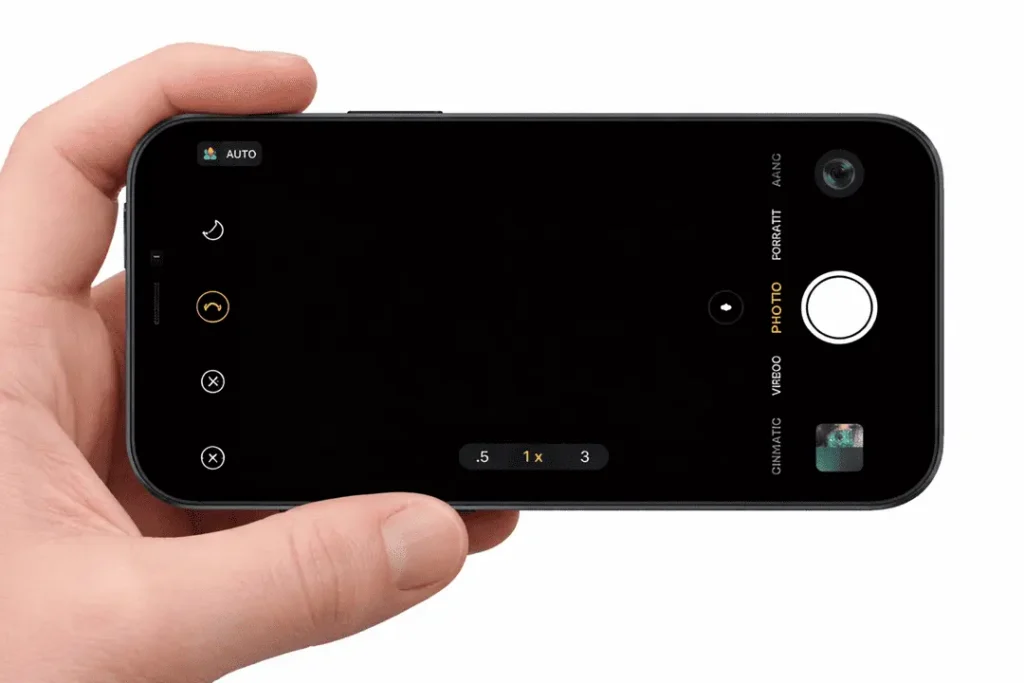
So your iPhone 13 camera is showing a black screen.Annoying, right? You open Camera and instead of being presented with your room, or your face, or whatever you have in the cross hairs… It’s just dark. Sometimes it freezes. Sometimes it stays black but the buttons still work. In a few cases, the app crashes and kicks you back to the Home screen.
The good thing is: this problem isn’t always “camera dead.”Many times, it can be a software glitch, conflict between the settings and low storage that make the small affairs appear larger than they are. That said, if the phone was dropped or encountered a wet environment, the camera module may have been damaged after all. So rather than making guesses, let’s go through a proper repair checklist — shallow first, deep next.
Here’s an iPhone 13 black screen in Camera app checklist to use at home before you pay for service. Get details on Mobile Repair in Caroline Springs.
Step 1: Start with the boring stuff (because it works often)
Clean the camera lens area
Yeah, I know—this sounds too simple. But still do it.
- Wipe the lens gently with a microfiber cloth
- Remove oily fingerprints and dust
- Check for tiny cracks around the camera ring
Sometimes a dirty lens + low light makes the camera behave weirdly, especially after a fall.
Step 2: Remove the case and lens protector
Next, remove:
- Your phone case
- Any camera lens protector or camera ring cover
Then open the Camera app again.
Some lens protectors are not fitted properly. Also, a thick case can press around the camera area. So, if the camera suddenly comes back, you already found the culprit.
Step 3: Force-close the Camera app properly
Now do this:
- Swipe up (App Switcher)
- Find Camera
- Swipe it away to close
- Reopen Camera
Then test camera from other apps too:
- Instagram camera
- WhatsApp camera
- FaceTime
- Snapchat (if you use it)
If it happens when you use WhatsApp, but not in the Camera app, then that usually indicates a software clash rather than a faulty camera.
Step 4: Restart the iPhone (normal restart)
A standard restart fixes more issues than people want to believe.
- Hold Side button + volume button
- Slide to power off
- Turn it back on
After restart, open the Camera and check rear + front.
Step 5: Do a force restart (stronger, still safe)
If the black screen is still there, do a force restart. This does not delete data.
- Press Volume Up (quick)
- Press Volume Down (quick)
- Hold Side button until Apple logo appears
This refreshes stuck system services, including the camera service.
Step 6: Check camera permissions (easy to miss)
Sometimes the camera isn’t “broken.” It’s blocked.
Go to:
Settings → Privacy & Security → Camera
Now check if camera access is allowed for the apps you use.
Also check:
Settings → Screen Time → Content & Privacy Restrictions → Allowed Apps → Camera ON
If you changed Screen Time settings recently (or someone else did), this step matters a lot. Looking for a iPhone Repair Service in Caroline Springs?
Step 7: Make sure storage isn’t full (this one causes weird problems)
Here’s a real thing: if your iPhone storage is almost full, the camera can act crazy. It can freeze, go black, or refuse to load.
Go to:
Settings → General → iPhone Storage
If you’re near full:
- delete big videos
- remove old WhatsApp media
- offload unused apps
- clear junk screenshots (they pile up fast)
Then restart again and test the Camera.
Step 8: Check iOS update (or bugs after update)
If the problem occurred right after you did an iOS update, you’re not alone. iOS glitches can impact the camera.
Go to:
Settings → General → Software Update
Install the latest patch if available. Apple often fixes camera stability bugs quietly in small updates.
Step 9: Reset all settings (doesn’t delete your photos)
If the camera is still black, this step is a strong one — and still safe.
Go to:
Settings → General → Transfer or Reset iPhone → Reset → Reset All Settings
What happens after this?
- Wi-Fi passwords reset
- wallpapers, keyboard settings reset
- privacy permissions may reset
But your photos and apps stay.
This step helps when the camera problem comes from settings conflicts.
Step 10: Signs it may be hardware (don’t ignore these)
Now let’s talk honestly. Sometimes the camera black screen is hardware.
Likely hardware issue if:
- Camera is black in all apps
- Flashlight is greyed out and won’t turn on
- You hear clicking / shaking noise near camera
- The issue started right after a drop
- The phone was exposed to water, even “just a little”
- Camera opens but instantly turns black and freezes
If you see these signs, don’t waste more time doing random resets again and again. You’ll just get frustrated.
Step 11: Quick test: flashlight check
This is a good quick indicator.
Try turning on flashlight:
- If flashlight works fine, it can still be software
- If flashlight is disabled/greyed out, hardware is more likely
Not 100% perfect, but it’s a useful hint.
Step 12: Last software option: backup and restore
This is the “deep clean” software step.
- Backup to iCloud or computer
- Restore the iPhone (Finder / iTunes)
- Test camera before installing everything back
If the camera still shows black after a clean restore, then yes—most likely it’s hardware. Get details on Smartphone Battery Replacement in Caroline Springs.
Quick Table: What You See vs What It Usually Means
| Issue you notice | Most likely cause | What to do |
| Black screen only in Camera app | iOS glitch | Force close + restart + reset settings |
| Works in Instagram but not Camera | Camera service conflict | Update iOS + reset settings |
| Black screen in every app | Hardware or deep OS issue | Restore + professional diagnosis |
| Started after drop | Camera module/flex damage | Hardware inspection |
| Started after water | Corrosion damage | Stop testing + get checked |
When you should visit Katya Phone for repair
If you completed the checklist and still have:
- black screen in all apps
- camera crashes instantly
- flashlight disabled
- camera issues after drop or water
…then it’s time for a proper check.
Related Articles:
» iPhone 15 Battery Replacement: Signs You Need It
» iPhone 16 Pro screen flickering fix: Causes & Repair options
» iPhone 16 battery draining fast: diagnosis + battery replacement
» OPPO Speaker Not Working: Water and Dust
» Galaxy A56 Battery Replacement: How long it takes?
A good repair shop should test:
- rear camera module
- front camera module
- flex connectors
- internal alignment after impact
- and if needed, board-level camera line
At Katya Phone, you can ask directly:
“Please confirm if it’s a camera module issue or connector/flex issue before replacing parts.”
That saves money and avoids unnecessary replacements.
FAQs – iPhone 13 Camera Black Screen
1) Why is my iPhone 13 camera black all of a sudden?
It’s commonly a camera app crash, iOS bug, storage problem, or hardware damage after a drop.
2) Can restarting fix the camera black screen?
Yes. A normal restart or force restart fixes many temporary camera service glitches.
3) My rear camera is black but the selfie camera works. What does that mean?
Often it’s a rear camera module problem or rear camera connection issue. Still, try software steps first.
4) If Instagram camera works but Camera app is black, is the camera damaged?
Not always. That pattern usually points to iOS/app conflict rather than full hardware failure.
5) Does a lens protector cause camera issues?
It can. Some protectors block sensors, cause glare, or press against the camera ring.
6) Can low storage cause the camera to stop working?
Yes. When storage is very low, the camera can freeze, go black, or fail to load.
7) Will Reset All Settings delete my photos?
No. It only resets system settings like Wi-Fi, permissions, and preferences.
8) After a drop, my iPhone 13 camera shows black. Is it hardware?
Very possible. Drops can damage the camera module or loosen the camera connector.
9) My flashlight is disabled too. Is that related?
Yes, often. Camera and flashlight share hardware lines, so both failing can hint at hardware damage.
10) Can water damage show up later, not immediately?
Yes. Corrosion builds over time, so the camera might fail days or weeks after exposure.
11) Should I restore my iPhone to fix this?
Restoring is the final software step. If it still fails after restore, it’s likely hardware.
12) How do I know if I need an iPhone 13 camera replacement?
If the camera is black in all apps since update, reset and restore too — replacement or repair of hardware.