
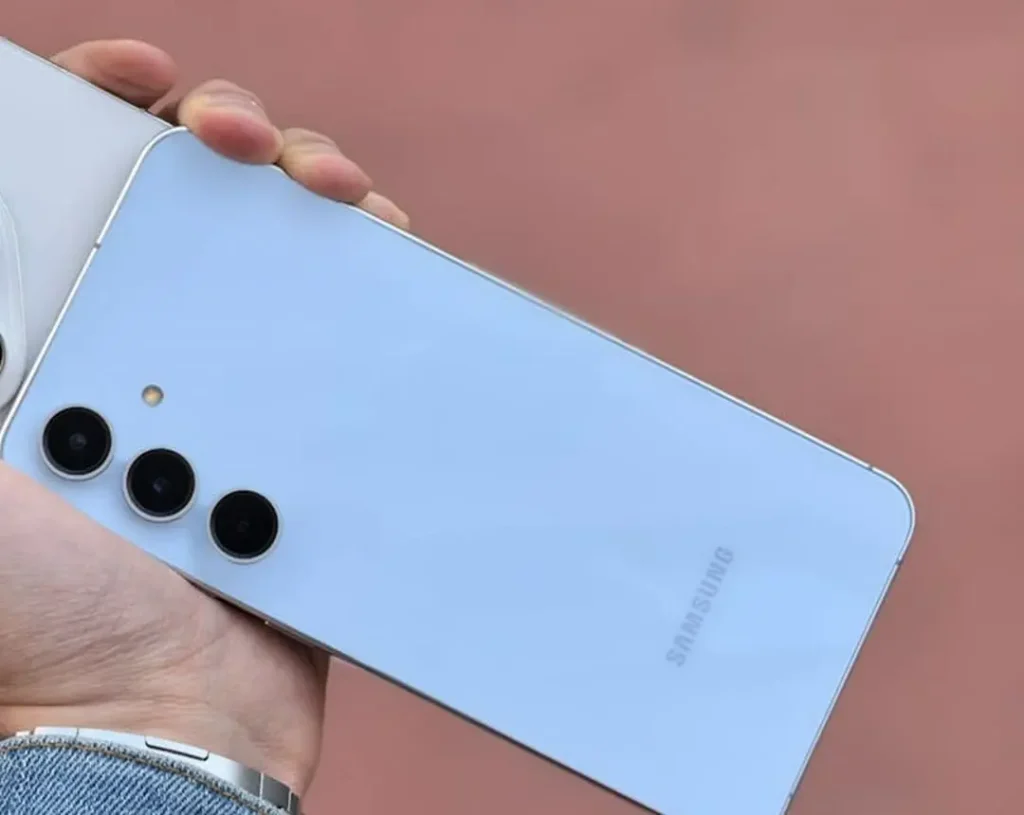
Water accidents happen in a blink. One minute, your Galaxy A55 is in your hands; the next, it’s in a sink, on the ground outdoors or (worst of all) submerged in a bucket. If you are reading this now, do not panic — just act quickly and take proper steps. When it comes to water damage, the initial 10–30 minutes can determine whether your phone survives or ends up with a dead board.
Here’s a simple, real-world guide to what you should do first, what not to do and when you need to give up and stop DIYand schedule a proper Galaxy A55 water damage repair via Katya Phone.
What “water damage” really means on a Galaxy A55
Even if the phone looks fine from outside, water can still slip into small areas like:
- the USB-C port
- speaker and mic mesh
- around the SIM tray
- tiny gaps near buttons and frame edges
After that, the problem is not just “wet phone.” It’s corrosion, short circuits, and tiny parts failing one by one. That’s why liquid damage sometimes shows up later—like after 2 days when you think everything is okay.
Common early signs include:
- screen flicker or random lines
- touch acting weird
- speaker sound low or crackly
- mic not working properly
- phone heating up suddenly
- moisture in charging port warning
- charging is slow or doesn’t start
So yes, even one small drop can create future headaches. Get details on Mobile Repair in Caroline Springs.
Step 1: Switch it off immediately (don’t “test” it again)
This is the most important rule for phone water damage repair.
Turn the phone off as fast as you can. Don’t open apps, don’t unlock it again, don’t check WhatsApp “just once. Every second it stays on, electricity can mix with water and cause a short.
If the screen is stuck, you can try forced shut down Power + volume down, if it responds. If not still continue to the next steps and keep it off.
Step 2: Don’t charge it. Seriously, don’t
This is where many people ruin a phone that could have been saved.
- Don’t plug in a charger
- Don’t use a power bank
- Don’t put it on wireless charging
- Don’t connect to a laptop to “see if it shows up”
Charging while moisture is inside can burn the charging pins, damage the charging IC, and in some cases kill the board. It’s just not worth the risk.
When your Galaxy A55 says moisture detected, take it as a warning that water could still be inside of it. Looking for a Samsung Smartphone Repair in Caroline Springs?
Step 3: Remove the case and SIM tray (let the phone breathe)
Next, remove anything trapping moisture:
- take off the phone case
- remove the SIM tray (and SD card if you have one)
- keep the SIM and card aside and dry them
You don’t need to poke inside with anything. Just opening those areas gives air a way in and helps water come out.
And if you can spot water around the SIM tray, that generally is an indication that water got in deeper than you imagine.
Step 4: Dry the outside the right way (no heat, no crazy shaking)
Do this instead:
- use a soft cloth or tissue and wipe the phone gently
- hold it upright so gravity helps
- lightly tap it against a towel to release drops from the port
Avoid these common mistakes:
- Shaking it hard (it spreads water further inside)
- Using a hair dryer (heat can push moisture deeper and damage seals)
- Keeping it under direct sun or on a hot radiator
- Trying “vacuum suction tricks” from random videos
Slow and steady is better here.
Step 5: Skip rice—use airflow or silica gel (much cleaner)
People still do the rice trick because it’s popular. But rice can leave dust and tiny particles inside the port and speakers. Later you’ll face charging issues, even if water is gone.
Better options for water damaged phone drying:
- place the phone near a fan in a dry room
- keep it upright if possible
- put it in an airtight container with silica gel packets (best option)
Silica gel actually absorbs moisture. Rice mostly just sits there. Get details on Smartphone Battery Replacement in Caroline Springs.
Step 6: What kind of liquid was it? This matters a lot
Be honest: was it plain water, or something else?
- Tap water / fresh water: still risky but not the worst
- Salt water: super corrosive and fast damage
- Coffee, tea, soft drinks: sticky residue ruins parts over time
- Pool water / soap water: chemicals can damage coatings
- Rain water: often carries dirt and pollutants
If your Galaxy A55 touched salt water or a sugary drink, don’t wait overnight. That’s the type of damage that “looks okay today” and fails later.
This is where a fast liquid damage repair cleaning really helps.
Step 7: Look for warning signs before you try powering it on
Even after drying the outside, don’t rush to turn it on. First, check symptoms:
- screen shows lines or flickers
- speaker is muffled
- phone gets hot for no reason
- charging warning appears
- camera looks foggy or blurry
- buttons feel stuck
If you see any of these, DIY drying may not be enough. At that point, internal cleaning is safer than risking a full short circuit.
Step 8: When can you safely try switching it on?
If it was only a small splash and you acted quickly, you may attempt power-on after giving it real time to dry:
- small splash: wait 12–24 hours
- dropped in water: wait 24–48 hours
- salt water / soft drink: don’t gamble—get it cleaned ASAP
Even then, power-on is still a risk. If you have a lot of valuable family photos or work data, it’s better to go for a professional check first. Looking for a Mobile Screen Replacement in Caroline Springs?
What professionals do during Galaxy A55 water damage repair
A proper Galaxy A55 water damage repair is not just “drying” your phone. Good repair work means stopping corrosion and checking components before they fail.
At Katya Phone, the process usually includes:
- safe opening and inspection
- battery disconnect (to avoid shorts)
- checking for corrosion on connectors and board areas
- cleaning inside properly with the right solutions
- drying under controlled conditions
- testing charging, sound, display, camera, and network
- replacing damaged parts if needed (charging port, speaker, flex, etc.)
- final testing for stability
This matters because corrosion doesn’t stop on its own. If it starts, it keeps growing slowly.
Quick data-saving tip (if your phone turns on later)
If your phone powers on after drying, don’t push it hard. Don’t play games or record long videos. Instead:
- back up photos immediately
- save contacts and important files
- keep usage light for a few days
Water damage can “come back.” People hate hearing that, but it’s true.
Related Articles:
» Galaxy S26 overheating: Battery vs Motherboard Faults
» iPhone 16 battery draining fast: diagnosis + battery replacement
» iPhone 16 Pro screen flickering fix: Causes & Repair options
» Galaxy A55 Water Damage Repair: What to Do First
» Galaxy A56 Battery Replacement: How long it takes
How to avoid water damage next time
- use a decent case (with raised edges)
- don’t charge in humid bathrooms
- keep the USB port clean (lint holds moisture)
- use a waterproof pouch if you travel a lot
Also remember: water resistance is not forever. One drop or one opening can reduce it. So don’t fully trust it.
FAQs – Galaxy A55 Water Damage Repair
1) What’s the first thing I should do if my Galaxy A55 gets wet?
2) Can I charge my Galaxy A55 if it got wet earlier today?
No. Charging is one of the fastest ways to cause permanent damage during liquid damage.
3) Is the “moisture detected” warning serious?
Yes. It means moisture is present in the charging area. Don’t force charge.
4) Does rice really fix water damage?
Not really. It’s messy and unreliable. Airflow and silica gel work better for a water damaged phone.
5) My phone works, but speakers sound low. What does it mean?
Moisture or residue may be inside the speaker mesh. Sometimes it improves, but cleaning is often needed.
6) What if my Galaxy A55 fell in salt water?
Salt water is very corrosive. You should get Galaxy A55 water damage repair urgently.
7) Can water damage show up after a few days?
Yes. Corrosion can slowly build and cause sudden issues later.
8) Can a repair shop save a water damaged phone without replacing the motherboard?
Often yes. Many phones only need cleaning and small part changes if handled early.
9) Should I use a hair dryer to dry the phone?
No. Heat can push water deeper and damage internal seals and adhesives.
10) My camera looks foggy after water exposure—what should I do?
Fog means moisture inside the module. Don’t heat it. Get it checked before it turns into permanent haze.
11) How long should I wait before trying to turn it on?
12–24 hours for light splash, 24–48 hours for submersion. For soda/salt water, don’t wait—clean it.
12) Can Katya Phone help recover data from a water damaged Galaxy A55?
In many cases, yes—especially if you bring it in early and avoid charging it.